

Top Buzz Trends
No Result
View All Result
  • Entertainment
  • Business
  • Gaming
  • Tech
  • Crypto
  • More
    • Netflix
    • Prime Video
    • Max
    • Celebrity News
    • Movies
    • TV Shows
    • Paramount+
    • Disney+
    • Hulu
    • Apple TV
    • Google TV
    • Politics
    • Sports
  • Entertainment
  • Business
  • Gaming
  • Tech
  • Crypto
  • More
    • Netflix
    • Prime Video
    • Max
    • Celebrity News
    • Movies
    • TV Shows
    • Paramount+
    • Disney+
    • Hulu
    • Apple TV
    • Google TV
    • Politics
    • Sports
No Result
View All Result
Top Buzz Trends
  • Entertainment
  • Business
  • Gaming
  • Tech
  • Crypto
  • More
Home Tech

What Exactly Is an App Drawer on Android and How Should One Make the Most of It?

by Editorial Team
September 6, 2023
in Tech
Reading Time: 4 mins read
0


What Exactly Is an App Drawer on Android and How Should One Make the Most of It?

Consider jumping from an iPhone to an Android device or reading a troubleshooting guide. In that case, you may have come across the term “app drawer.” Where exactly is it located, and what are the steps to accessing it on your Android phone?

Don’t be concerned! To gain access to the app drawer, it is not necessary to download and install any third-party software. It is handy for organizing the programs that have been loaded, and it comes pre-installed on most Android phones. A few stock launchers do not include an app drawer, such as the Mi Launcher.

Therefore, let’s have a look at the capabilities of the app drawer on Android, as well as how to use it.

What Is an App Drawer?

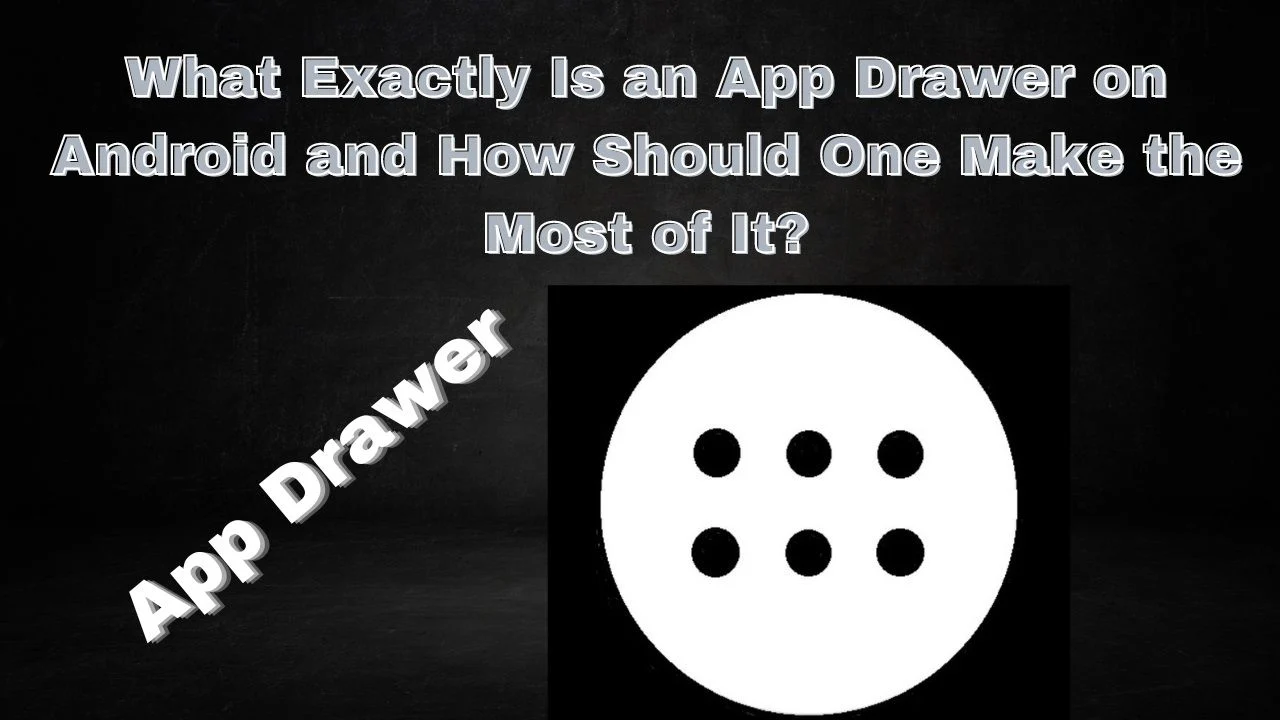
An app drawer is a section on your Android phone that contains all the installed apps. Unlike iPhones, where apps are placed on the home screen, Android phones have a separate home screen and app drawer. Whenever you install an app, it is automatically placed in the app drawer, but you can also place frequently used apps on the home screen for quick access.

App Drawer vs. Home Screen:

Both the app drawer and home screen are part of the same launcher on your Android phone. The main difference between the two is that the home screen only contains a selection of installed apps, usually your favorites. If an app is not available on the home screen, you can access it from the app drawer. If you can’t find it in the app drawer, the app is not installed on your phone.

Accessing and Opening the App Drawer:

To access the app drawer, swipe up from the bottom of your home screen or tap on the app drawer icon, which is usually located in the dock along with other default apps. Some phones may require you to swipe up to access the app drawer, and you will see a small up arrow at the bottom indicating this.

Appearance of the App Drawer:

The app drawer resembles the home screen but does not include widgets or a dock. All your apps are neatly arranged within the app drawer. You can customize the row and column count to suit your preferences in some launchers, such as Nova and Action Launcher.

Sorting Apps in the App Drawer:

By default, apps in the app drawer appear in the order you installed them. However, some app drawers allow you to customize the sorting mode. You can choose from alphabetical order, most used, and other options. Tap on the three-dot icon at the top-right corner of the app drawer and select your preferred sorting mode.

Scrolling Through Apps in the App Drawer:

Different app drawers have varying scrolling styles. Some allow vertical scrolling, where you can scroll up and down to view all the apps, while others list apps on horizontal pages similar to the home screen. Some launchers can choose your preferred scrolling style in the app drawer settings.

Other App Drawer Features:

Apart from organizing your apps, the app drawer offers additional features such as folders and search functionality. While most launchers support folders on the home screen, only a few allow you to create folders within the app drawer. The app drawer also includes a search bar at the top for quick app search and accessibility.

Placing Apps on the Home Screen:

Any app you install will automatically appear in the app drawer. However, to place apps on the home screen, make sure you have enabled the “add apps to home screen” option in your launcher settings. To move an app from the app drawer to the home screen, touch and hold the app icon and drag it to any edge of the screen. Once you reach the home screen, release the app icon to place it there.

Do You Need an App Drawer?

The app drawer will be invaluable if you prefer a clean home screen with minimal icons. It helps organize your apps without cluttering the home screen and keeps them safe since they can only be deleted from the app drawer. However, remember that once you add your favorite apps to the home screen, you may rarely need to use the app drawer. If you prefer a launcher without an app drawer, you can explore specific launcher apps designed without it.

DO YOU NEED AN APP DRAWER

If you prefer to keep your home screen uncluttered and simple, the app drawer will be a wonderful addition to your device. The app drawer is a useful organizational tool that helps keep the home screen clear of app clutter. Because you can only delete programs from the app drawer and not from the home screen directly, this prevents accidental deletion of apps and keeps them secure.

However, one of the app drawer’s drawbacks is that users must remember which programs they have installed. The apps are displayed in their entirety on the home screen; yet, after we have moved our most often used programs to the home screen, we rarely access the app drawer. However, if you don’t want an app drawer, you can use one of these launcher programs that doesn’t include an app drawer.

RELATED POSTS

Generative AI and Fair Compensation for Artists: The Call for Proper Authorization and Compensation

Building Equitable Products: Strategies for Inclusive Product Innovation

Blue Apron: From IPO to Acquisition by Wonder Group – A Journey of Growth and Transformation

ADVERTISEMENT
ShareTweetShareSend
Editorial Team

Editorial Team

Related Posts

Top Buzz Trends - Post Thumbnail
Tech

Generative AI and Fair Compensation for Artists: The Call for Proper Authorization and Compensation

October 1, 2023
Top Buzz Trends - Post Thumbnail
Tech

Building Equitable Products: Strategies for Inclusive Product Innovation

September 30, 2023
Top Buzz Trends - Post Thumbnail
Tech

Blue Apron: From IPO to Acquisition by Wonder Group – A Journey of Growth and Transformation

September 30, 2023
Top Buzz Trends - Post Thumbnail
Tech

The Intrigue Surrounding X’s Subscription Model: Lack of Clarity and Coordination Revealed in Interview

September 29, 2023
Tech

Is Your iPhone Compatible with iOS 17? Check Compatibility and Find Out!

September 29, 2023
Top Buzz Trends - Post Thumbnail
Tech

The Future of Artifact: Transforming into a Social News Experience

September 29, 2023

Popular - Posts

  • Top Buzz Trends - Post Thumbnail

    Starbreeze Resolves Server Issues for PayDay 3: Major Update and Commercial Activities Resume

    0 shares
    Share 0 Tweet 0
  • Bleach Brave Souls Update 1.43: Increased Maximum Player Rank, Battle Power, and More!

    0 shares
    Share 0 Tweet 0
  • Blue Origin and Sierra Space Partnership on Orbital Reef Space Station Faces Uncertainty

    0 shares
    Share 0 Tweet 0
  • Trending
  • Comments
  • Latest
Top Buzz Trends - Post Thumbnail

Starbreeze Resolves Server Issues for PayDay 3: Major Update and Commercial Activities Resume

October 2, 2023
Top Buzz Trends - Post Thumbnail

Bleach Brave Souls Update 1.43: Increased Maximum Player Rank, Battle Power, and More!

October 2, 2023
Top Buzz Trends - Post Thumbnail

Blue Origin and Sierra Space Partnership on Orbital Reef Space Station Faces Uncertainty

September 29, 2023
Enlisted Patch Notes 1.97 Update Today on June 2, 2022

Enlisted Patch Notes 1.97 Update Today on June 2, 2022

June 4, 2022
Top Buzz Trends - Post Thumbnail

Bleach Brave Souls Update 1.43: Increased Maximum Player Rank, Battle Power, and More!

October 2, 2023
Top Buzz Trends - Post Thumbnail

Starbreeze Resolves Server Issues for PayDay 3: Major Update and Commercial Activities Resume

October 2, 2023

Memory: A Promising Film from TIFF with Jessica Chastain and Peter Sarsgaard

October 2, 2023
Top Buzz Trends - Post Thumbnail

Scientists Win Nobel Prize for Groundbreaking Discoveries in mRNA Vaccines Against COVID-19

October 2, 2023
  • About Us
  • Contact Us
  • Privacy Policy
  • Disclaimer
  • Editorial Policy
  • Terms and Conditions
  • Use Of Cookies

Top Buzz Trends
Top Buzz Trends is not endorsed, moderated, owned by, or affiliated with TopBuzz or any of its partners in any capacity. Top Buzz Trends is an independent news website for Entertainment, Movies, TV Shows, Netflix, Games, and Gadgets, Software, Computers, Smartphones, and more. All promotional material including but not limited to trailers, images, and videos, are all copyrighted to their respective owners. TopBuzz is a registered trademark of ByteDance Ltd.
© Top Buzz Trends - All Rights Reserved.

No Result
View All Result
  • Entertainment
  • Business
  • Gaming
  • Tech
  • Crypto
  • More
    • Netflix
    • Prime Video
    • Max
    • Celebrity News
    • Movies
    • TV Shows
    • Paramount+
    • Disney+
    • Hulu
    • Apple TV
    • Google TV
    • Politics
    • Sports

Top Buzz Trends
Top Buzz Trends is not endorsed, moderated, owned by, or affiliated with TopBuzz or any of its partners in any capacity. Top Buzz Trends is an independent news website for Entertainment, Movies, TV Shows, Netflix, Games, and Gadgets, Software, Computers, Smartphones, and more. All promotional material including but not limited to trailers, images, and videos, are all copyrighted to their respective owners. TopBuzz is a registered trademark of ByteDance Ltd.
© Top Buzz Trends - All Rights Reserved.

This website uses cookies. By continuing to use this website you are giving consent to cookies being used. Visit our Privacy and Cookie Policy.
Go to mobile version