

How to Stop Android From Killing Background Apps
Battery life is a crucial aspect of any smartphone. Still, sometimes Android devices take it to the extreme, causing apps to run poorly or miss important notifications by killing them in the background. This article will explain why Android kills background apps and provide a universal method to stop this from happening.
Why Does Android Kill Background Apps?
Android manufacturers need help managing apps running in the background. They can either allow apps to run freely, which may negatively impact battery life, or selectively kill background apps they believe you don’t need. Unfortunately, suppose your phone follows the latter approach. In that case, you might have experienced the frustration of missed notifications due to app killings.
This issue has become so prominent that app developers created the “Don’t Kill My App!” website to address this problem. This platform ranks Android manufacturers based on their poorly handling background app management. Surprisingly, Samsung ranks as one of the top offenders, while Google stands out as one of the best.
How to Stop It?
While the Don’t Kill My App! website offers specific instructions for different device manufacturers, and we will share a universal method that should work for most Android devices. Remember that there may be additional methods to resolve this issue, but this method serves as a good starting point. In this example, we will demonstrate the steps on a Samsung phone.
Step 1: Access the Settings Menu
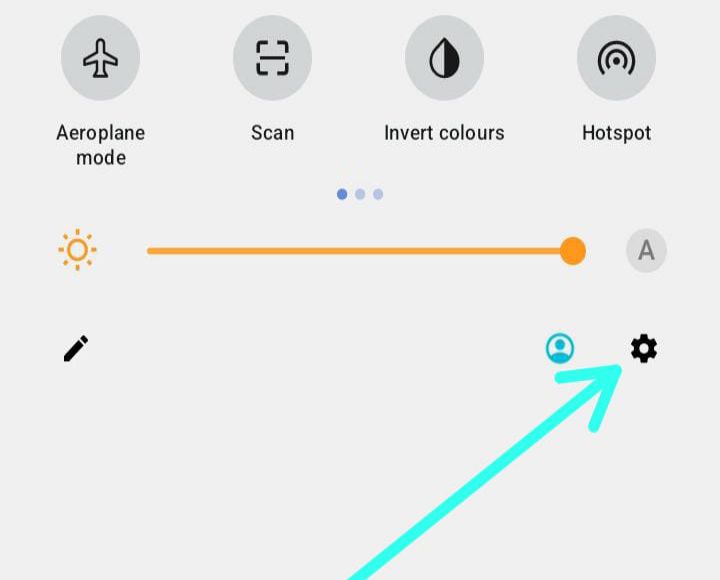
Swipe down once from the top of the screen to reveal the notification panel. From there, tap on the gear icon to access the Settings menu.
Step 2: Locate the Apps Section
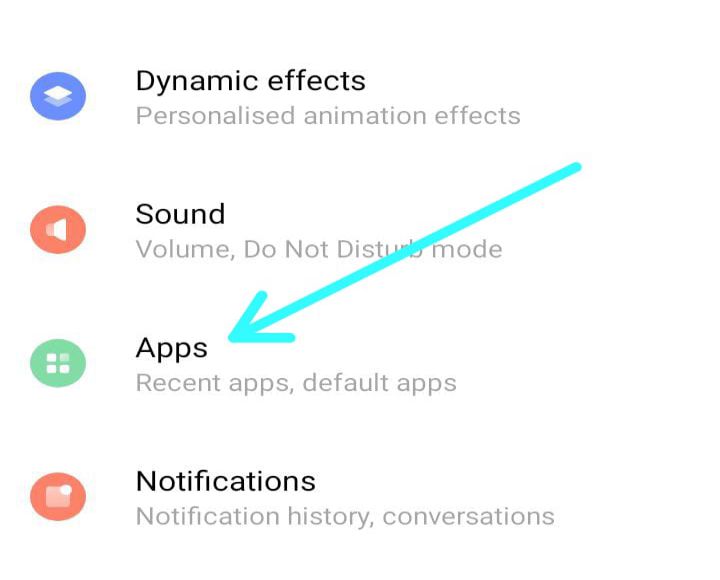
Scroll down within the Settings menu and locate the “Apps” option. Tap on it to proceed.
Step 3: Select the Problematic App
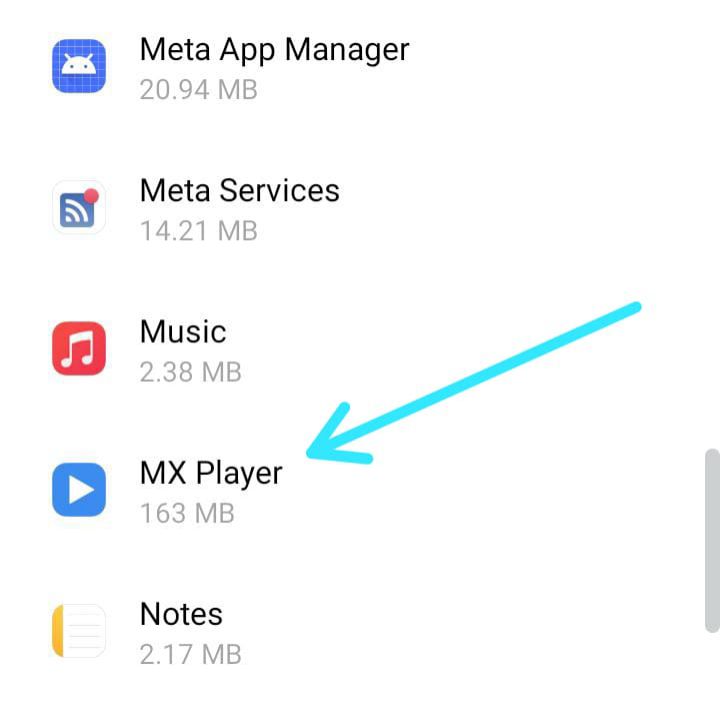
Identify the app you noticed closing in the background and select it from the list. This will take you to the specific app info page.
Step 4: Navigate to Battery Settings
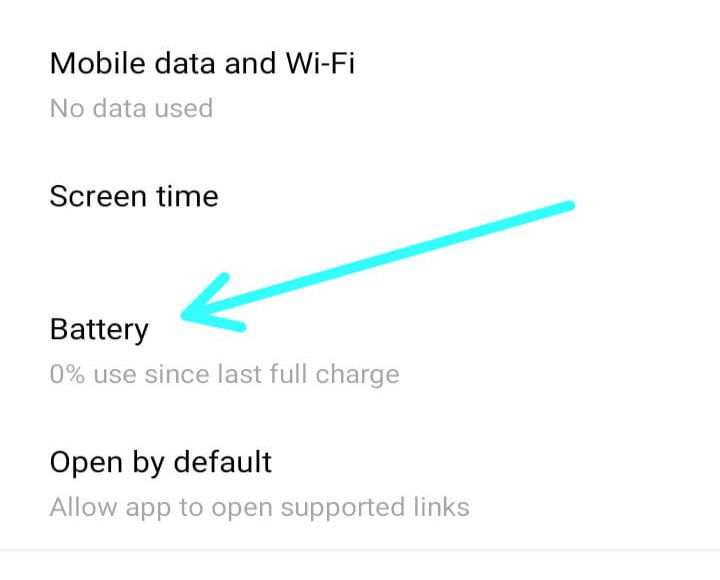
On the app info page, scroll down until you find either the “Battery” or “App Battery Usage” option. Tap on it to access the battery settings for that particular app.
Step 5: Adjust Battery Optimization
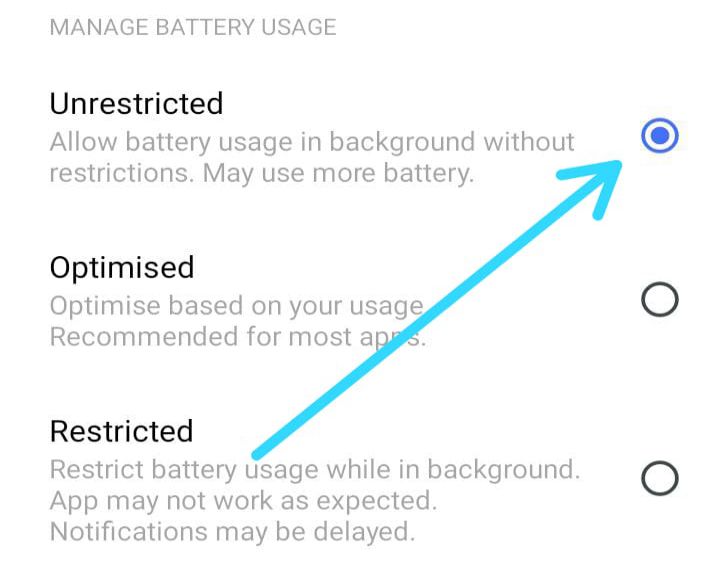
Within the battery settings, you will come across three options: Unrestricted, Optimized, and Restricted. To prevent the app from being killed in the background, select the “Unrestricted” option.
Conclusion
While multiple factors may contribute to your background app-killing issues, following this universal method should alleviate the problem on most Android devices. By ensuring that the app is not optimized, you can enjoy uninterrupted app functionality and receive timely notifications. Remember, for more specific instructions related to your device manufacturer, you can refer to the comprehensive resources provided on the “Don’t Kill My App!” website. Take control of your Android background app management and optimize your user experience.
How to Stop Android From Killing Background Apps
Battery life is a crucial aspect of any smartphone. Still, sometimes Android devices take it to the extreme, causing apps to run poorly or miss important notifications by killing them in the background. This article will explain why Android kills background apps and provide a universal method to stop this from happening.
Why Does Android Kill Background Apps?
Android manufacturers need help managing apps running in the background. They can either allow apps to run freely, which may negatively impact battery life, or selectively kill background apps they believe you don’t need. Unfortunately, suppose your phone follows the latter approach. In that case, you might have experienced the frustration of missed notifications due to app killings.
This issue has become so prominent that app developers created the “Don’t Kill My App!” website to address this problem. This platform ranks Android manufacturers based on their poorly handling background app management. Surprisingly, Samsung ranks as one of the top offenders, while Google stands out as one of the best.
How to Stop It?
While the Don’t Kill My App! website offers specific instructions for different device manufacturers, and we will share a universal method that should work for most Android devices. Remember that there may be additional methods to resolve this issue, but this method serves as a good starting point. In this example, we will demonstrate the steps on a Samsung phone.
Step 1: Access the Settings Menu
Swipe down once from the top of the screen to reveal the notification panel. From there, tap on the gear icon to access the Settings menu.
Step 2: Locate the Apps Section
Scroll down within the Settings menu and locate the “Apps” option. Tap on it to proceed.
Step 3: Select the Problematic App
Identify the app you noticed closing in the background and select it from the list. This will take you to the specific app info page.
Step 4: Navigate to Battery Settings
On the app info page, scroll down until you find either the “Battery” or “App Battery Usage” option. Tap on it to access the battery settings for that particular app.
Step 5: Adjust Battery Optimization
Within the battery settings, you will come across three options: Unrestricted, Optimized, and Restricted. To prevent the app from being killed in the background, select the “Unrestricted” option.
Conclusion
While multiple factors may contribute to your background app-killing issues, following this universal method should alleviate the problem on most Android devices. By ensuring that the app is not optimized, you can enjoy uninterrupted app functionality and receive timely notifications. Remember, for more specific instructions related to your device manufacturer, you can refer to the comprehensive resources provided on the “Don’t Kill My App!” website. Take control of your Android background app management and optimize your user experience.
How to Stop Android From Killing Background Apps
Battery life is a crucial aspect of any smartphone. Still, sometimes Android devices take it to the extreme, causing apps to run poorly or miss important notifications by killing them in the background. This article will explain why Android kills background apps and provide a universal method to stop this from happening.
Why Does Android Kill Background Apps?
Android manufacturers need help managing apps running in the background. They can either allow apps to run freely, which may negatively impact battery life, or selectively kill background apps they believe you don’t need. Unfortunately, suppose your phone follows the latter approach. In that case, you might have experienced the frustration of missed notifications due to app killings.
This issue has become so prominent that app developers created the “Don’t Kill My App!” website to address this problem. This platform ranks Android manufacturers based on their poorly handling background app management. Surprisingly, Samsung ranks as one of the top offenders, while Google stands out as one of the best.
How to Stop It?
While the Don’t Kill My App! website offers specific instructions for different device manufacturers, and we will share a universal method that should work for most Android devices. Remember that there may be additional methods to resolve this issue, but this method serves as a good starting point. In this example, we will demonstrate the steps on a Samsung phone.
Step 1: Access the Settings Menu
Swipe down once from the top of the screen to reveal the notification panel. From there, tap on the gear icon to access the Settings menu.
Step 2: Locate the Apps Section
Scroll down within the Settings menu and locate the “Apps” option. Tap on it to proceed.
Step 3: Select the Problematic App
Identify the app you noticed closing in the background and select it from the list. This will take you to the specific app info page.
Step 4: Navigate to Battery Settings
On the app info page, scroll down until you find either the “Battery” or “App Battery Usage” option. Tap on it to access the battery settings for that particular app.
Step 5: Adjust Battery Optimization
Within the battery settings, you will come across three options: Unrestricted, Optimized, and Restricted. To prevent the app from being killed in the background, select the “Unrestricted” option.
Conclusion
While multiple factors may contribute to your background app-killing issues, following this universal method should alleviate the problem on most Android devices. By ensuring that the app is not optimized, you can enjoy uninterrupted app functionality and receive timely notifications. Remember, for more specific instructions related to your device manufacturer, you can refer to the comprehensive resources provided on the “Don’t Kill My App!” website. Take control of your Android background app management and optimize your user experience.
How to Stop Android From Killing Background Apps
Battery life is a crucial aspect of any smartphone. Still, sometimes Android devices take it to the extreme, causing apps to run poorly or miss important notifications by killing them in the background. This article will explain why Android kills background apps and provide a universal method to stop this from happening.
Why Does Android Kill Background Apps?
Android manufacturers need help managing apps running in the background. They can either allow apps to run freely, which may negatively impact battery life, or selectively kill background apps they believe you don’t need. Unfortunately, suppose your phone follows the latter approach. In that case, you might have experienced the frustration of missed notifications due to app killings.
This issue has become so prominent that app developers created the “Don’t Kill My App!” website to address this problem. This platform ranks Android manufacturers based on their poorly handling background app management. Surprisingly, Samsung ranks as one of the top offenders, while Google stands out as one of the best.
How to Stop It?
While the Don’t Kill My App! website offers specific instructions for different device manufacturers, and we will share a universal method that should work for most Android devices. Remember that there may be additional methods to resolve this issue, but this method serves as a good starting point. In this example, we will demonstrate the steps on a Samsung phone.
Step 1: Access the Settings Menu
Swipe down once from the top of the screen to reveal the notification panel. From there, tap on the gear icon to access the Settings menu.
Step 2: Locate the Apps Section
Scroll down within the Settings menu and locate the “Apps” option. Tap on it to proceed.
Step 3: Select the Problematic App
Identify the app you noticed closing in the background and select it from the list. This will take you to the specific app info page.
Step 4: Navigate to Battery Settings
On the app info page, scroll down until you find either the “Battery” or “App Battery Usage” option. Tap on it to access the battery settings for that particular app.
Step 5: Adjust Battery Optimization
Within the battery settings, you will come across three options: Unrestricted, Optimized, and Restricted. To prevent the app from being killed in the background, select the “Unrestricted” option.
Conclusion
While multiple factors may contribute to your background app-killing issues, following this universal method should alleviate the problem on most Android devices. By ensuring that the app is not optimized, you can enjoy uninterrupted app functionality and receive timely notifications. Remember, for more specific instructions related to your device manufacturer, you can refer to the comprehensive resources provided on the “Don’t Kill My App!” website. Take control of your Android background app management and optimize your user experience.
How to Stop Android From Killing Background Apps
Battery life is a crucial aspect of any smartphone. Still, sometimes Android devices take it to the extreme, causing apps to run poorly or miss important notifications by killing them in the background. This article will explain why Android kills background apps and provide a universal method to stop this from happening.
Why Does Android Kill Background Apps?
Android manufacturers need help managing apps running in the background. They can either allow apps to run freely, which may negatively impact battery life, or selectively kill background apps they believe you don’t need. Unfortunately, suppose your phone follows the latter approach. In that case, you might have experienced the frustration of missed notifications due to app killings.
This issue has become so prominent that app developers created the “Don’t Kill My App!” website to address this problem. This platform ranks Android manufacturers based on their poorly handling background app management. Surprisingly, Samsung ranks as one of the top offenders, while Google stands out as one of the best.
How to Stop It?
While the Don’t Kill My App! website offers specific instructions for different device manufacturers, and we will share a universal method that should work for most Android devices. Remember that there may be additional methods to resolve this issue, but this method serves as a good starting point. In this example, we will demonstrate the steps on a Samsung phone.
Step 1: Access the Settings Menu
Swipe down once from the top of the screen to reveal the notification panel. From there, tap on the gear icon to access the Settings menu.
Step 2: Locate the Apps Section
Scroll down within the Settings menu and locate the “Apps” option. Tap on it to proceed.
Step 3: Select the Problematic App
Identify the app you noticed closing in the background and select it from the list. This will take you to the specific app info page.
Step 4: Navigate to Battery Settings
On the app info page, scroll down until you find either the “Battery” or “App Battery Usage” option. Tap on it to access the battery settings for that particular app.
Step 5: Adjust Battery Optimization
Within the battery settings, you will come across three options: Unrestricted, Optimized, and Restricted. To prevent the app from being killed in the background, select the “Unrestricted” option.
Conclusion
While multiple factors may contribute to your background app-killing issues, following this universal method should alleviate the problem on most Android devices. By ensuring that the app is not optimized, you can enjoy uninterrupted app functionality and receive timely notifications. Remember, for more specific instructions related to your device manufacturer, you can refer to the comprehensive resources provided on the “Don’t Kill My App!” website. Take control of your Android background app management and optimize your user experience.
How to Stop Android From Killing Background Apps
Battery life is a crucial aspect of any smartphone. Still, sometimes Android devices take it to the extreme, causing apps to run poorly or miss important notifications by killing them in the background. This article will explain why Android kills background apps and provide a universal method to stop this from happening.
Why Does Android Kill Background Apps?
Android manufacturers need help managing apps running in the background. They can either allow apps to run freely, which may negatively impact battery life, or selectively kill background apps they believe you don’t need. Unfortunately, suppose your phone follows the latter approach. In that case, you might have experienced the frustration of missed notifications due to app killings.
This issue has become so prominent that app developers created the “Don’t Kill My App!” website to address this problem. This platform ranks Android manufacturers based on their poorly handling background app management. Surprisingly, Samsung ranks as one of the top offenders, while Google stands out as one of the best.
How to Stop It?
While the Don’t Kill My App! website offers specific instructions for different device manufacturers, and we will share a universal method that should work for most Android devices. Remember that there may be additional methods to resolve this issue, but this method serves as a good starting point. In this example, we will demonstrate the steps on a Samsung phone.
Step 1: Access the Settings Menu
Swipe down once from the top of the screen to reveal the notification panel. From there, tap on the gear icon to access the Settings menu.
Step 2: Locate the Apps Section
Scroll down within the Settings menu and locate the “Apps” option. Tap on it to proceed.
Step 3: Select the Problematic App
Identify the app you noticed closing in the background and select it from the list. This will take you to the specific app info page.
Step 4: Navigate to Battery Settings
On the app info page, scroll down until you find either the “Battery” or “App Battery Usage” option. Tap on it to access the battery settings for that particular app.
Step 5: Adjust Battery Optimization
Within the battery settings, you will come across three options: Unrestricted, Optimized, and Restricted. To prevent the app from being killed in the background, select the “Unrestricted” option.
Conclusion
While multiple factors may contribute to your background app-killing issues, following this universal method should alleviate the problem on most Android devices. By ensuring that the app is not optimized, you can enjoy uninterrupted app functionality and receive timely notifications. Remember, for more specific instructions related to your device manufacturer, you can refer to the comprehensive resources provided on the “Don’t Kill My App!” website. Take control of your Android background app management and optimize your user experience.
How to Stop Android From Killing Background Apps
Battery life is a crucial aspect of any smartphone. Still, sometimes Android devices take it to the extreme, causing apps to run poorly or miss important notifications by killing them in the background. This article will explain why Android kills background apps and provide a universal method to stop this from happening.
Why Does Android Kill Background Apps?
Android manufacturers need help managing apps running in the background. They can either allow apps to run freely, which may negatively impact battery life, or selectively kill background apps they believe you don’t need. Unfortunately, suppose your phone follows the latter approach. In that case, you might have experienced the frustration of missed notifications due to app killings.
This issue has become so prominent that app developers created the “Don’t Kill My App!” website to address this problem. This platform ranks Android manufacturers based on their poorly handling background app management. Surprisingly, Samsung ranks as one of the top offenders, while Google stands out as one of the best.
How to Stop It?
While the Don’t Kill My App! website offers specific instructions for different device manufacturers, and we will share a universal method that should work for most Android devices. Remember that there may be additional methods to resolve this issue, but this method serves as a good starting point. In this example, we will demonstrate the steps on a Samsung phone.
Step 1: Access the Settings Menu
Swipe down once from the top of the screen to reveal the notification panel. From there, tap on the gear icon to access the Settings menu.
Step 2: Locate the Apps Section
Scroll down within the Settings menu and locate the “Apps” option. Tap on it to proceed.
Step 3: Select the Problematic App
Identify the app you noticed closing in the background and select it from the list. This will take you to the specific app info page.
Step 4: Navigate to Battery Settings
On the app info page, scroll down until you find either the “Battery” or “App Battery Usage” option. Tap on it to access the battery settings for that particular app.
Step 5: Adjust Battery Optimization
Within the battery settings, you will come across three options: Unrestricted, Optimized, and Restricted. To prevent the app from being killed in the background, select the “Unrestricted” option.
Conclusion
While multiple factors may contribute to your background app-killing issues, following this universal method should alleviate the problem on most Android devices. By ensuring that the app is not optimized, you can enjoy uninterrupted app functionality and receive timely notifications. Remember, for more specific instructions related to your device manufacturer, you can refer to the comprehensive resources provided on the “Don’t Kill My App!” website. Take control of your Android background app management and optimize your user experience.
How to Stop Android From Killing Background Apps
Battery life is a crucial aspect of any smartphone. Still, sometimes Android devices take it to the extreme, causing apps to run poorly or miss important notifications by killing them in the background. This article will explain why Android kills background apps and provide a universal method to stop this from happening.
Why Does Android Kill Background Apps?
Android manufacturers need help managing apps running in the background. They can either allow apps to run freely, which may negatively impact battery life, or selectively kill background apps they believe you don’t need. Unfortunately, suppose your phone follows the latter approach. In that case, you might have experienced the frustration of missed notifications due to app killings.
This issue has become so prominent that app developers created the “Don’t Kill My App!” website to address this problem. This platform ranks Android manufacturers based on their poorly handling background app management. Surprisingly, Samsung ranks as one of the top offenders, while Google stands out as one of the best.
How to Stop It?
While the Don’t Kill My App! website offers specific instructions for different device manufacturers, and we will share a universal method that should work for most Android devices. Remember that there may be additional methods to resolve this issue, but this method serves as a good starting point. In this example, we will demonstrate the steps on a Samsung phone.
Step 1: Access the Settings Menu
Swipe down once from the top of the screen to reveal the notification panel. From there, tap on the gear icon to access the Settings menu.
Step 2: Locate the Apps Section
Scroll down within the Settings menu and locate the “Apps” option. Tap on it to proceed.
Step 3: Select the Problematic App
Identify the app you noticed closing in the background and select it from the list. This will take you to the specific app info page.
Step 4: Navigate to Battery Settings
On the app info page, scroll down until you find either the “Battery” or “App Battery Usage” option. Tap on it to access the battery settings for that particular app.
Step 5: Adjust Battery Optimization
Within the battery settings, you will come across three options: Unrestricted, Optimized, and Restricted. To prevent the app from being killed in the background, select the “Unrestricted” option.
Conclusion
While multiple factors may contribute to your background app-killing issues, following this universal method should alleviate the problem on most Android devices. By ensuring that the app is not optimized, you can enjoy uninterrupted app functionality and receive timely notifications. Remember, for more specific instructions related to your device manufacturer, you can refer to the comprehensive resources provided on the “Don’t Kill My App!” website. Take control of your Android background app management and optimize your user experience.