

Top Buzz Trends
No Result
View All Result
  • Entertainment
  • Business
  • Gaming
  • Tech
  • Crypto
  • More
    • Netflix
    • Prime Video
    • Max
    • Celebrity News
    • Movies
    • TV Shows
    • Paramount+
    • Disney+
    • Hulu
    • Apple TV
    • Google TV
    • Politics
    • Sports
  • Entertainment
  • Business
  • Gaming
  • Tech
  • Crypto
  • More
    • Netflix
    • Prime Video
    • Max
    • Celebrity News
    • Movies
    • TV Shows
    • Paramount+
    • Disney+
    • Hulu
    • Apple TV
    • Google TV
    • Politics
    • Sports
No Result
View All Result
Top Buzz Trends
  • Entertainment
  • Business
  • Gaming
  • Tech
  • Crypto
  • More
Home Tech

How to Change File Type on Windows 10 and 11: A Step-by-Step Guide

by Editorial Team
September 3, 2023
in Tech
Reading Time: 3 mins read
0

RELATED POSTS

Generative AI and Fair Compensation for Artists: The Call for Proper Authorization and Compensation

Building Equitable Products: Strategies for Inclusive Product Innovation

Blue Apron: From IPO to Acquisition by Wonder Group – A Journey of Growth and Transformation


How to Change File Type on Windows 10 and 11

How to Change File Type on Windows 10 and 11

Understanding Changing a File’s Type

Changing a file’s type means altering its extension, and both Windows 10 and 11 provide methods to accomplish this. However, choosing the appropriate option based on your specific requirements is essential.

Renaming a file is not the right approach for changing its extension. By simply renaming a file, you modify its type without converting it to the desired format. For instance, renaming a DOCX file to TXT won’t convert it to plain text. Although changing the file extension can work in certain cases, like converting JPG to JPEG or TXT to CSV, it entirely depends on your situation.

On the other hand, the “Save As” option ensures that your files are converted to match the target format. For instance, you can use the Windows Paint app to save a PNG image as a GIF. This way, you can be confident that your resulting file will work as intended.

Using the “Save As” option when converting files from one format to another is recommended unless you are certain that changing the extension will not cause any issues.

Step-by-Step Guide to Changing a File’s Type Using “Save As” on Windows

The “Save As” option allows you to convert files from one format to another, ensuring a proper conversion and a file that functions correctly. Here’s how to use this method:

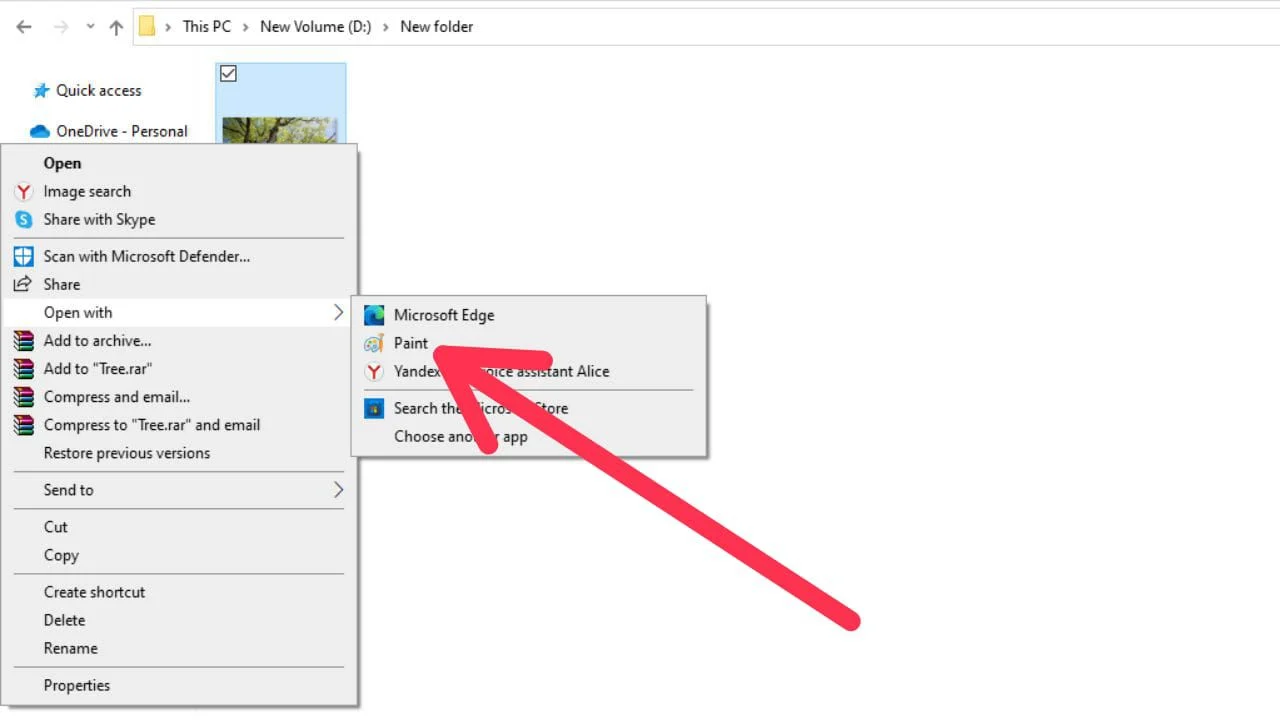
  • Open a File Explorer window and locate the PNG file you wish to convert.
  • Right-click the PNG file and select “Open With > Paint” from the menu.
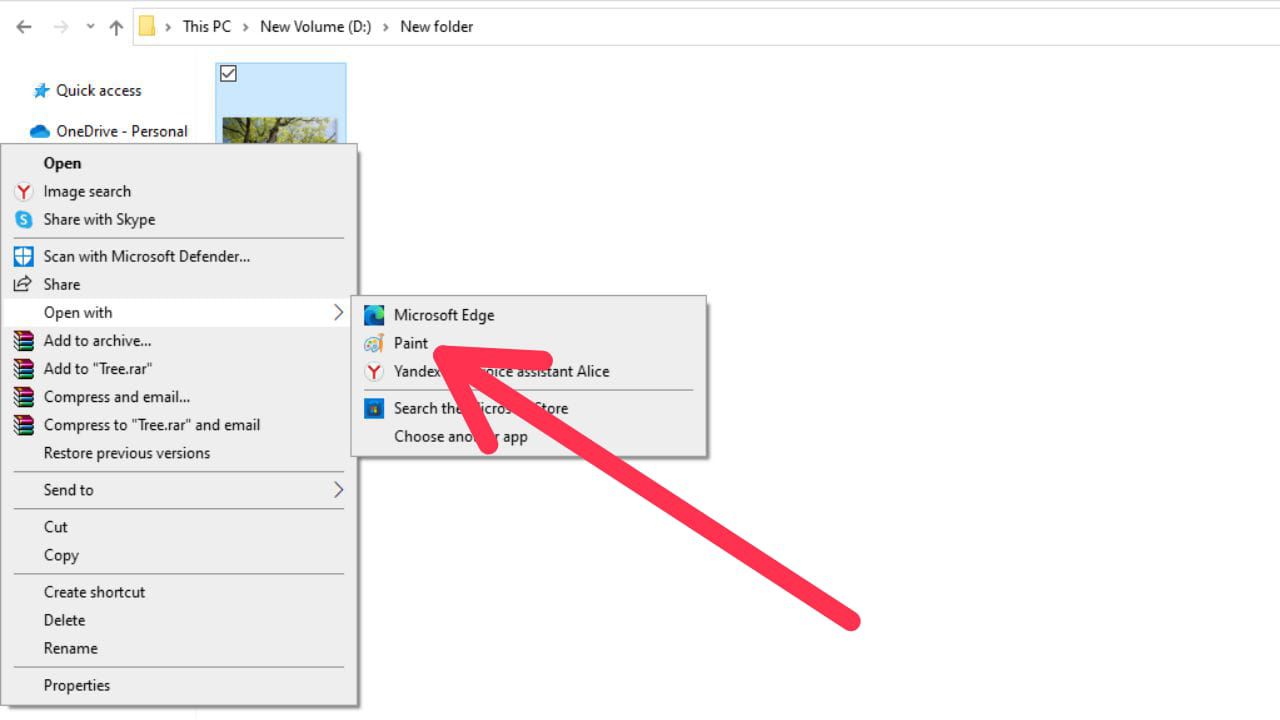
How to Change File Type on Windows 10 an d 11

  • Once the PNG file opens in Paint, click “File” at the top-left corner of the Paint window.
  • Choose “Save As” from the options.
  • On the right pane, select the desired format for your file. In this example, we will select “GIF Picture.”
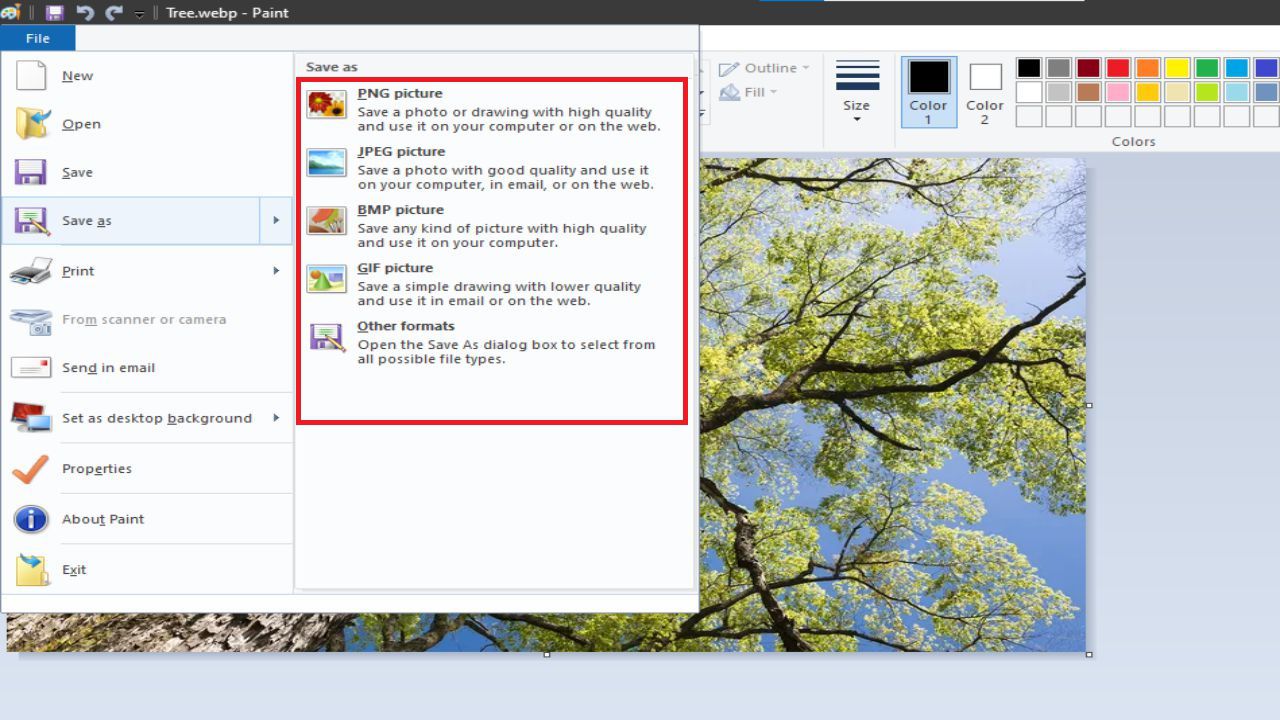
How to Change File Type on Windows 10 an d 11

  • The “Save As” window will appear on your PC. Select the folder where you want to save the GIF file, enter the desired file name in the “File Name” field, and click “Save.”
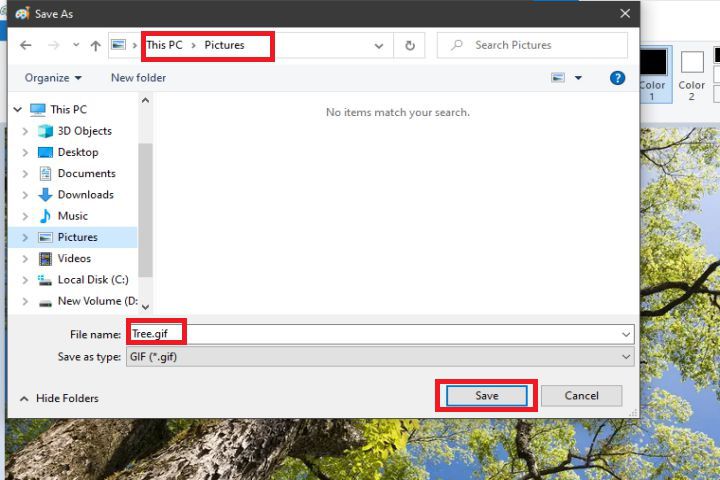
How to Change File Type on Windows 10 an d 11

Congratulations! You have successfully changed the file type using the “Save As” option. Remember, you can follow a similar process in many other apps for converting files.

Using “Rename” to Change a File’s Extension on Windows

The “Rename” option in Windows allows you to change a file’s name and extension. However, it is important to note that this method may only sometimes work smoothly.

Follow these steps to change the file’s extension using the “Rename” option:

  • Make sure that Windows is set to show file extensions. If this option is disabled, enable it first.
  • Launch a File Explorer window and locate the file whose type you want to change.
  • Right-click the file and select “Rename.”
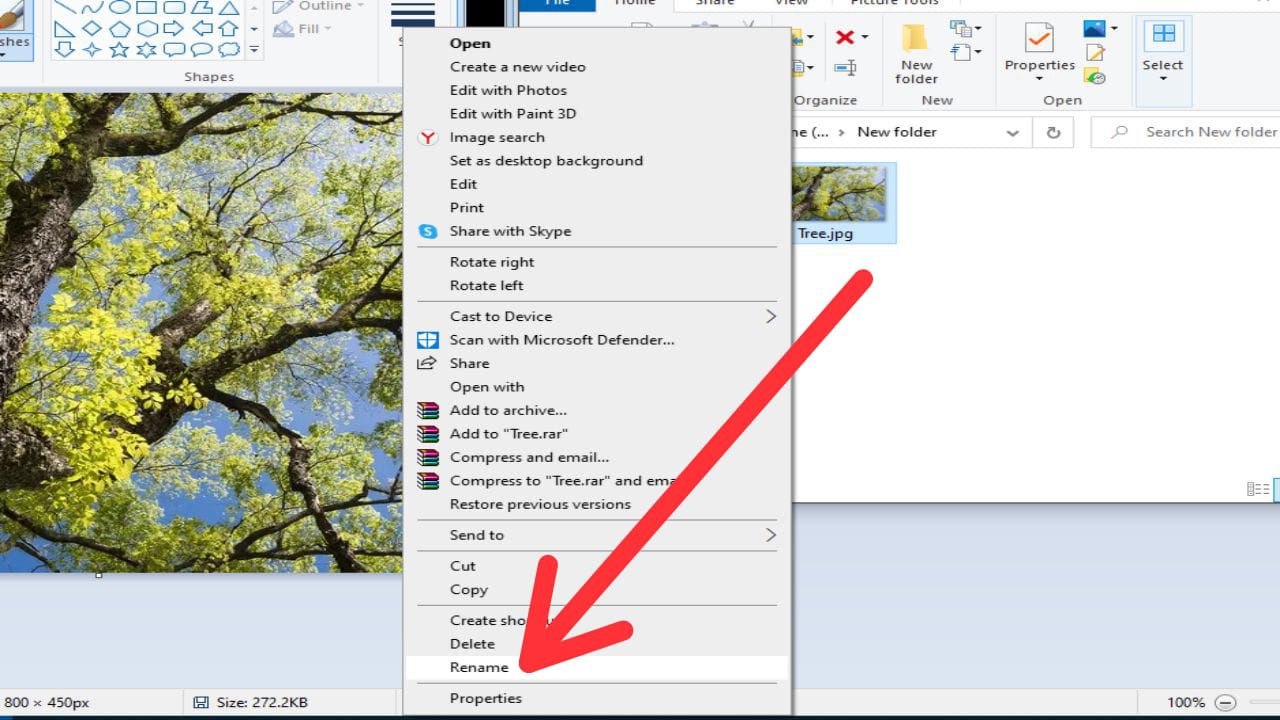
How to Change File Type on Windows 10 an d 11

ADVERTISEMENT


How to Change File Type on Windows 10 and 11

How to Change File Type on Windows 10 and 11

Understanding Changing a File’s Type

Changing a file’s type means altering its extension, and both Windows 10 and 11 provide methods to accomplish this. However, choosing the appropriate option based on your specific requirements is essential.

Renaming a file is not the right approach for changing its extension. By simply renaming a file, you modify its type without converting it to the desired format. For instance, renaming a DOCX file to TXT won’t convert it to plain text. Although changing the file extension can work in certain cases, like converting JPG to JPEG or TXT to CSV, it entirely depends on your situation.

On the other hand, the “Save As” option ensures that your files are converted to match the target format. For instance, you can use the Windows Paint app to save a PNG image as a GIF. This way, you can be confident that your resulting file will work as intended.

Using the “Save As” option when converting files from one format to another is recommended unless you are certain that changing the extension will not cause any issues.

Step-by-Step Guide to Changing a File’s Type Using “Save As” on Windows

The “Save As” option allows you to convert files from one format to another, ensuring a proper conversion and a file that functions correctly. Here’s how to use this method:

  • Open a File Explorer window and locate the PNG file you wish to convert.
  • Right-click the PNG file and select “Open With > Paint” from the menu.

How to Change File Type on Windows 10 an d 11

  • Once the PNG file opens in Paint, click “File” at the top-left corner of the Paint window.
  • Choose “Save As” from the options.
  • On the right pane, select the desired format for your file. In this example, we will select “GIF Picture.”

How to Change File Type on Windows 10 an d 11

  • The “Save As” window will appear on your PC. Select the folder where you want to save the GIF file, enter the desired file name in the “File Name” field, and click “Save.”

How to Change File Type on Windows 10 an d 11

Congratulations! You have successfully changed the file type using the “Save As” option. Remember, you can follow a similar process in many other apps for converting files.

Using “Rename” to Change a File’s Extension on Windows

The “Rename” option in Windows allows you to change a file’s name and extension. However, it is important to note that this method may only sometimes work smoothly.

Follow these steps to change the file’s extension using the “Rename” option:

  • Make sure that Windows is set to show file extensions. If this option is disabled, enable it first.
  • Launch a File Explorer window and locate the file whose type you want to change.
  • Right-click the file and select “Rename.”

How to Change File Type on Windows 10 an d 11


How to Change File Type on Windows 10 and 11

How to Change File Type on Windows 10 and 11

Understanding Changing a File’s Type

Changing a file’s type means altering its extension, and both Windows 10 and 11 provide methods to accomplish this. However, choosing the appropriate option based on your specific requirements is essential.

Renaming a file is not the right approach for changing its extension. By simply renaming a file, you modify its type without converting it to the desired format. For instance, renaming a DOCX file to TXT won’t convert it to plain text. Although changing the file extension can work in certain cases, like converting JPG to JPEG or TXT to CSV, it entirely depends on your situation.

On the other hand, the “Save As” option ensures that your files are converted to match the target format. For instance, you can use the Windows Paint app to save a PNG image as a GIF. This way, you can be confident that your resulting file will work as intended.

Using the “Save As” option when converting files from one format to another is recommended unless you are certain that changing the extension will not cause any issues.

Step-by-Step Guide to Changing a File’s Type Using “Save As” on Windows

The “Save As” option allows you to convert files from one format to another, ensuring a proper conversion and a file that functions correctly. Here’s how to use this method:

  • Open a File Explorer window and locate the PNG file you wish to convert.
  • Right-click the PNG file and select “Open With > Paint” from the menu.

How to Change File Type on Windows 10 an d 11

  • Once the PNG file opens in Paint, click “File” at the top-left corner of the Paint window.
  • Choose “Save As” from the options.
  • On the right pane, select the desired format for your file. In this example, we will select “GIF Picture.”

How to Change File Type on Windows 10 an d 11

  • The “Save As” window will appear on your PC. Select the folder where you want to save the GIF file, enter the desired file name in the “File Name” field, and click “Save.”

How to Change File Type on Windows 10 an d 11

Congratulations! You have successfully changed the file type using the “Save As” option. Remember, you can follow a similar process in many other apps for converting files.

Using “Rename” to Change a File’s Extension on Windows

The “Rename” option in Windows allows you to change a file’s name and extension. However, it is important to note that this method may only sometimes work smoothly.

Follow these steps to change the file’s extension using the “Rename” option:

  • Make sure that Windows is set to show file extensions. If this option is disabled, enable it first.
  • Launch a File Explorer window and locate the file whose type you want to change.
  • Right-click the file and select “Rename.”

How to Change File Type on Windows 10 an d 11

ADVERTISEMENT


How to Change File Type on Windows 10 and 11

How to Change File Type on Windows 10 and 11

Understanding Changing a File’s Type

Changing a file’s type means altering its extension, and both Windows 10 and 11 provide methods to accomplish this. However, choosing the appropriate option based on your specific requirements is essential.

Renaming a file is not the right approach for changing its extension. By simply renaming a file, you modify its type without converting it to the desired format. For instance, renaming a DOCX file to TXT won’t convert it to plain text. Although changing the file extension can work in certain cases, like converting JPG to JPEG or TXT to CSV, it entirely depends on your situation.

On the other hand, the “Save As” option ensures that your files are converted to match the target format. For instance, you can use the Windows Paint app to save a PNG image as a GIF. This way, you can be confident that your resulting file will work as intended.

Using the “Save As” option when converting files from one format to another is recommended unless you are certain that changing the extension will not cause any issues.

Step-by-Step Guide to Changing a File’s Type Using “Save As” on Windows

The “Save As” option allows you to convert files from one format to another, ensuring a proper conversion and a file that functions correctly. Here’s how to use this method:

  • Open a File Explorer window and locate the PNG file you wish to convert.
  • Right-click the PNG file and select “Open With > Paint” from the menu.

How to Change File Type on Windows 10 an d 11

  • Once the PNG file opens in Paint, click “File” at the top-left corner of the Paint window.
  • Choose “Save As” from the options.
  • On the right pane, select the desired format for your file. In this example, we will select “GIF Picture.”

How to Change File Type on Windows 10 an d 11

  • The “Save As” window will appear on your PC. Select the folder where you want to save the GIF file, enter the desired file name in the “File Name” field, and click “Save.”

How to Change File Type on Windows 10 an d 11

Congratulations! You have successfully changed the file type using the “Save As” option. Remember, you can follow a similar process in many other apps for converting files.

Using “Rename” to Change a File’s Extension on Windows

The “Rename” option in Windows allows you to change a file’s name and extension. However, it is important to note that this method may only sometimes work smoothly.

Follow these steps to change the file’s extension using the “Rename” option:

  • Make sure that Windows is set to show file extensions. If this option is disabled, enable it first.
  • Launch a File Explorer window and locate the file whose type you want to change.
  • Right-click the file and select “Rename.”

How to Change File Type on Windows 10 an d 11

ShareTweetShareSend
Editorial Team

Editorial Team

Related Posts

Top Buzz Trends - Post Thumbnail
Tech

Generative AI and Fair Compensation for Artists: The Call for Proper Authorization and Compensation

October 1, 2023
Top Buzz Trends - Post Thumbnail
Tech

Building Equitable Products: Strategies for Inclusive Product Innovation

September 30, 2023
Top Buzz Trends - Post Thumbnail
Tech

Blue Apron: From IPO to Acquisition by Wonder Group – A Journey of Growth and Transformation

September 30, 2023
Top Buzz Trends - Post Thumbnail
Tech

The Intrigue Surrounding X’s Subscription Model: Lack of Clarity and Coordination Revealed in Interview

September 29, 2023
Tech

Is Your iPhone Compatible with iOS 17? Check Compatibility and Find Out!

September 29, 2023
Top Buzz Trends - Post Thumbnail
Tech

The Future of Artifact: Transforming into a Social News Experience

September 29, 2023

Popular - Posts

  • Top Buzz Trends - Post Thumbnail

    Starbreeze Resolves Server Issues for PayDay 3: Major Update and Commercial Activities Resume

    0 shares
    Share 0 Tweet 0
  • Bleach Brave Souls Update 1.43: Increased Maximum Player Rank, Battle Power, and More!

    0 shares
    Share 0 Tweet 0
  • Blue Origin and Sierra Space Partnership on Orbital Reef Space Station Faces Uncertainty

    0 shares
    Share 0 Tweet 0
  • Trending
  • Comments
  • Latest
Top Buzz Trends - Post Thumbnail

Starbreeze Resolves Server Issues for PayDay 3: Major Update and Commercial Activities Resume

October 2, 2023
Top Buzz Trends - Post Thumbnail

Bleach Brave Souls Update 1.43: Increased Maximum Player Rank, Battle Power, and More!

October 2, 2023
Top Buzz Trends - Post Thumbnail

Blue Origin and Sierra Space Partnership on Orbital Reef Space Station Faces Uncertainty

September 29, 2023
Enlisted Patch Notes 1.97 Update Today on June 2, 2022

Enlisted Patch Notes 1.97 Update Today on June 2, 2022

June 4, 2022
Top Buzz Trends - Post Thumbnail

Bleach Brave Souls Update 1.43: Increased Maximum Player Rank, Battle Power, and More!

October 2, 2023
Top Buzz Trends - Post Thumbnail

Starbreeze Resolves Server Issues for PayDay 3: Major Update and Commercial Activities Resume

October 2, 2023

Memory: A Promising Film from TIFF with Jessica Chastain and Peter Sarsgaard

October 2, 2023
Top Buzz Trends - Post Thumbnail

Scientists Win Nobel Prize for Groundbreaking Discoveries in mRNA Vaccines Against COVID-19

October 2, 2023
  • About Us
  • Contact Us
  • Privacy Policy
  • Disclaimer
  • Editorial Policy
  • Terms and Conditions
  • Use Of Cookies

Top Buzz Trends
Top Buzz Trends is not endorsed, moderated, owned by, or affiliated with TopBuzz or any of its partners in any capacity. Top Buzz Trends is an independent news website for Entertainment, Movies, TV Shows, Netflix, Games, and Gadgets, Software, Computers, Smartphones, and more. All promotional material including but not limited to trailers, images, and videos, are all copyrighted to their respective owners. TopBuzz is a registered trademark of ByteDance Ltd.
© Top Buzz Trends - All Rights Reserved.

No Result
View All Result
  • Entertainment
  • Business
  • Gaming
  • Tech
  • Crypto
  • More
    • Netflix
    • Prime Video
    • Max
    • Celebrity News
    • Movies
    • TV Shows
    • Paramount+
    • Disney+
    • Hulu
    • Apple TV
    • Google TV
    • Politics
    • Sports

Top Buzz Trends
Top Buzz Trends is not endorsed, moderated, owned by, or affiliated with TopBuzz or any of its partners in any capacity. Top Buzz Trends is an independent news website for Entertainment, Movies, TV Shows, Netflix, Games, and Gadgets, Software, Computers, Smartphones, and more. All promotional material including but not limited to trailers, images, and videos, are all copyrighted to their respective owners. TopBuzz is a registered trademark of ByteDance Ltd.
© Top Buzz Trends - All Rights Reserved.

This website uses cookies. By continuing to use this website you are giving consent to cookies being used. Visit our Privacy and Cookie Policy.
Go to mobile version